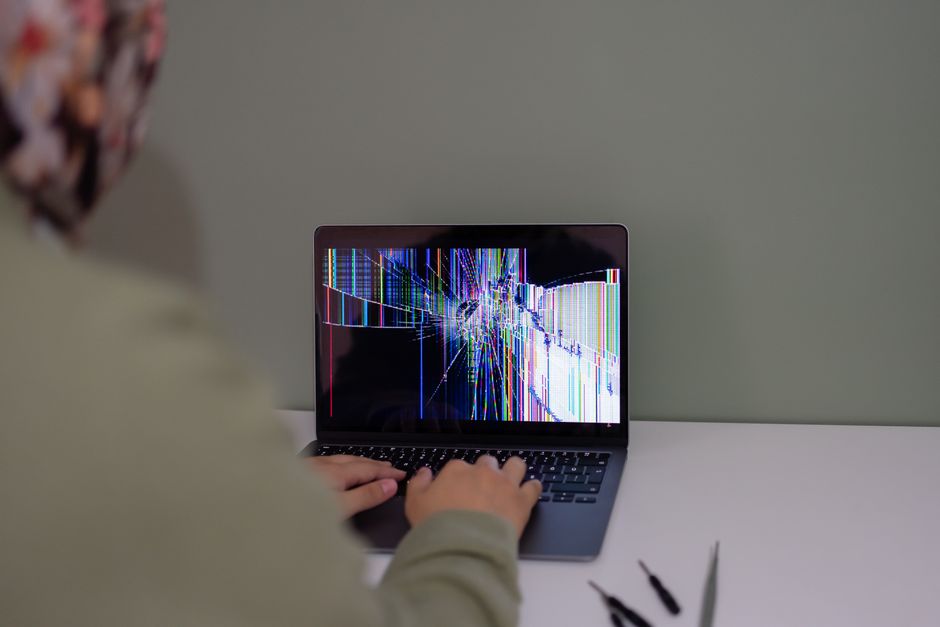
Seeing a ghostly imprint on a MacBook Pro display can be unsettling. Many owners assume the screen is ruined and needs an expensive replacement. The reality is more nuanced. Some marks are temporary image persistence that fades on its own. Others are permanent burn-in that appears only after very long exposure to static content. A few are not burn-in at all, but damage from harsh cleaners or physical pressure. Understanding the difference is the first step toward choosing the right fix.
What Are Screen Burn Marks on a MacBook Pro?
Screen burn-in occurs when static images leave a ghostly imprint on your display. This problem is more common in OLED technology than in the LCD panels used in most MacBook Pro models. When the same visual elements stay in one position for a long time, their outlines can become faintly visible over the rest of the screen. On a MacBook Pro, this can look like a shadow of the menu bar, the dock, or a frequently used app window. Burn marks can also appear as circular spots, uneven bands of color, or washed-out patches, depending on what caused them.
Burn-In, Image Persistence, and Ghosting: What Is the Difference?
People often use these three terms interchangeably, but they describe different problems. True burn-in is permanent. It happens when static images cause uneven aging of the display pixels, and it is most common on OLED panels. Image persistence is temporary. The screen holds a faint memory of what was displayed, but the impression fades after the content changes or the display rests. Ghosting usually refers to a faint trailing image that follows moving content, and it is often linked to pixel response time, a loose display cable, or software rendering issues.
This distinction matters because the fix is different for each condition. Most marks described as burn marks on a MacBook Pro are actually image persistence. That is good news, because image persistence can often be corrected with simple steps.
Can a MacBook Pro Get Real Burn-In?
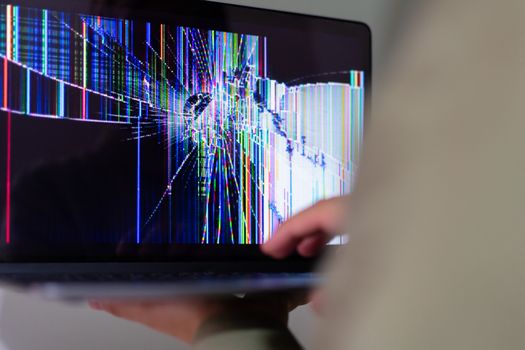
MacBook Pro models have historically used LCD displays. True burn-in is far more common on OLED screens, which are used in many phones, tablets, and premium televisions. An LCD panel can show image persistence that looks almost identical to burn-in, but the behavior is different.
A short session with one image on screen will not leave a mark. Six hours would not be anywhere near enough to cause burn-in on an OLED panel, and it is even less of a concern on an LCD MacBook screen. The menu bar and dock could be a long-term concern on an OLED display if the same layout is used constantly for years, but for most MacBook Pro owners, a persistent ghost is more likely temporary retention, coating damage, or physical pressure.
Real reports of burn-in on Mac laptops do exist, but they are rare compared with OLED devices. Some cases described online turn out to be something else. One MacBook Air M1 owner reported a screen that went very washed out, and the issue only became apparent after restarting the laptop. Burn-in does not behave that way. A true burn mark stays constant regardless of reboots, brightness changes, or software updates. If the symptom changes with system events, the cause is probably the display connection, the logic board, or a software rendering problem, not burn-in.
What Else Can Look Like Burn Marks?
Not every mark on a MacBook screen is caused by static images. Harsh chemical cleaners are a common culprit. There are a lot of poor quality screen cleaners on the market, and some of them strip or damage the anti-reflective coating. One MacBook Air screen was damaged by using too harsh of a chemical cleaner, leaving marks that could easily be mistaken for burn-in.
Physical pressure can also create circular marks. One MacBook Air owner reported a circular mark about 1.5 inches from the top edge of the screen and about 1.0 inches from the left edge. Marks like that are usually the result of something pressing against the display while the laptop is closed, such as a keyboard key, a stray object, or a tight case. These marks are not burn-in and they will not fade with a screen rest.
A washed-out display can sometimes look like a burn issue as well. One MacBook Air M1 owner described a screen that went very washed out, and the problem only became clear after a restart. That kind of symptom points to a logic board or display connection issue rather than burn-in, and it needs a different diagnostic approach than a simple ghost image.

How to Fix MacBook Pro Screen Burn Marks
The right fix depends on the technology and the cause. AMOLED burn-in on phones requires a different approach than LCD retention on a MacBook. Start with the least invasive steps and work your way up.
- Turn the display off and leave the MacBook closed for several hours. Temporary image persistence often fades when the pixels are given time to rest.
- Restart the MacBook. A full reboot clears the display buffer and can remove a ghost that is caused by software rather than the panel itself.
- Lower the brightness while using the laptop. High brightness makes existing marks more visible and can deepen retention over time.
- Move or hide static elements. Set the menu bar and dock to auto-hide so they do not occupy the same pixels for hours at a time.
- Play a full-screen video or run a moving screen saver. Changing the content can help an LCD panel recover from mild image persistence.
- Use a pixel-refresh tool if your display technology offers one. Some utilities are designed to cycle pixels and reduce retention.
If the mark fades after these steps, it was image persistence. If it remains after several hours with the display off, it is more likely permanent damage, and screen replacement may be the only reliable solution.
Prevention is also important. Avoid harsh chemical cleaners and abrasive cloths. Use a soft, dry microfiber cloth for routine cleaning. If a cleaner is needed, choose one that is explicitly safe for coated displays and apply it to the cloth, never directly to the screen.
When to Seek Professional MacBook Pro Screen Repair
Some marks are beyond DIY fixes. A deeply etched ghost on an OLED panel, a damaged anti-reflective coating, or a pressure mark that has permanently deformed the display will not improve with software tricks. In those cases, a professional assessment is the fastest path to a clear screen.
A technician can inspect the display and determine whether the problem is in the glass, the coating, the panel, or the connecting cable. For many MacBook models, the screen is sealed to the lid assembly, so replacement means swapping the entire display module. If the issue turns out to be a logic board or cable fault, a shop that also handles logic board repair can often solve the problem without replacing the screen at all.
For Toronto residents, an independent Mac repair specialist can handle same-day, on-site, or walk-in service depending on the nature of the repair. Independent shops are often a faster and more flexible option than a mail-in service when your MacBook is needed for work or school. A second opinion before ordering any parts is especially valuable when the cause of the mark is unclear.
Frequently Asked Questions
How do you fix a burn-in or ghost screen on a Mac?
Start by turning the display off and leaving the MacBook closed for a few hours. Restart the Mac, lower the brightness, and hide the menu bar and dock so static elements stop sitting in the same spot. Mild image persistence often fades after these steps. If the mark remains after a long rest, it is likely permanent and may require professional display service.
Will screen burn go away on its own?
Temporary image persistence can fade on its own once the screen shows different content or stays off for a while. True burn-in does not go away on its own because it is physical uneven aging of the display. If a mark is still visible after several hours with the display off, treat it as permanent and have the screen checked by a technician.
How do you get rid of smudge marks on a MacBook screen?
Smudge marks are different from burn-in and are usually caused by dirt, oils, or cleaning products. Use a soft, dry microfiber cloth and wipe gently in one direction. If needed, dampen the cloth slightly, but never apply liquid directly to the screen. Avoid harsh chemical cleaners, as they can damage the anti-reflective coating and leave permanent blotches.
Can a MacBook Pro screen be replaced?
Yes, a MacBook Pro display can be replaced. In many models the screen is sealed to the lid assembly, so the entire display module is swapped rather than just the glass. A professional repair shop can assess whether replacement is needed or whether the mark can be resolved with cleaning or software adjustments. This option is often more affordable than buying a new laptop.

0 Comments